Add and delete zooms
Add a zoom at the playhead or over a range, remove one, and clear the planner.
Add a zoom at the playhead or over a range, remove one, and clear the planner.
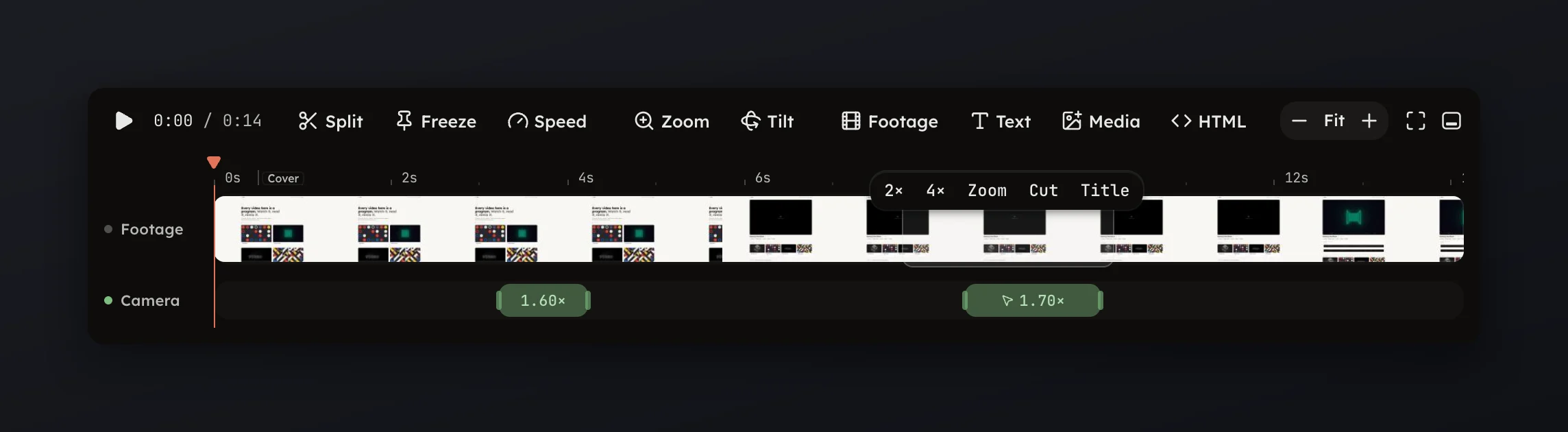
Press Zoom in the timeline toolbar, or Z, to add a zoom at the
playhead. It lands on the Camera row, selected, so the panel and the
green rectangle are ready to aim it.
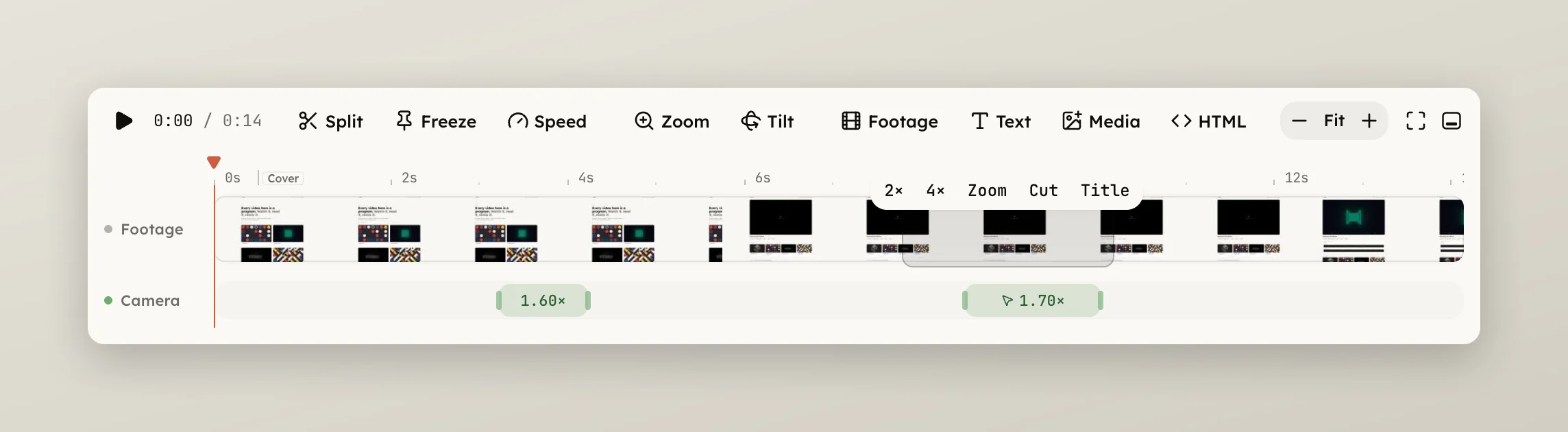
To zoom a stretch of the footage, drag across it on the Video row. Once
the range is at least 0.15 s long a row of chips appears; press Zoom and
a zoom fitted to the range lands, selected. Press Escape to let the range
go without acting. The other chips are on
Range chips.
Select a zoom and press Delete or ⌫ to remove it, or Delete zoom in
its panel. Right-click a zoom and choose Center focus to aim it at the
middle of the frame.
Clear on the Camera page removes the planner's suggestions only; zooms you added or edited stay. A suggestion you delete is not proposed again when the camera is re-planned.