Files
Every file you hold across projects: what each is, what uses it and what takes your storage.
Open Files in the workspace to see every file you hold, across all your projects: recordings, pictures, sound, 3D models, fonts and recipes.
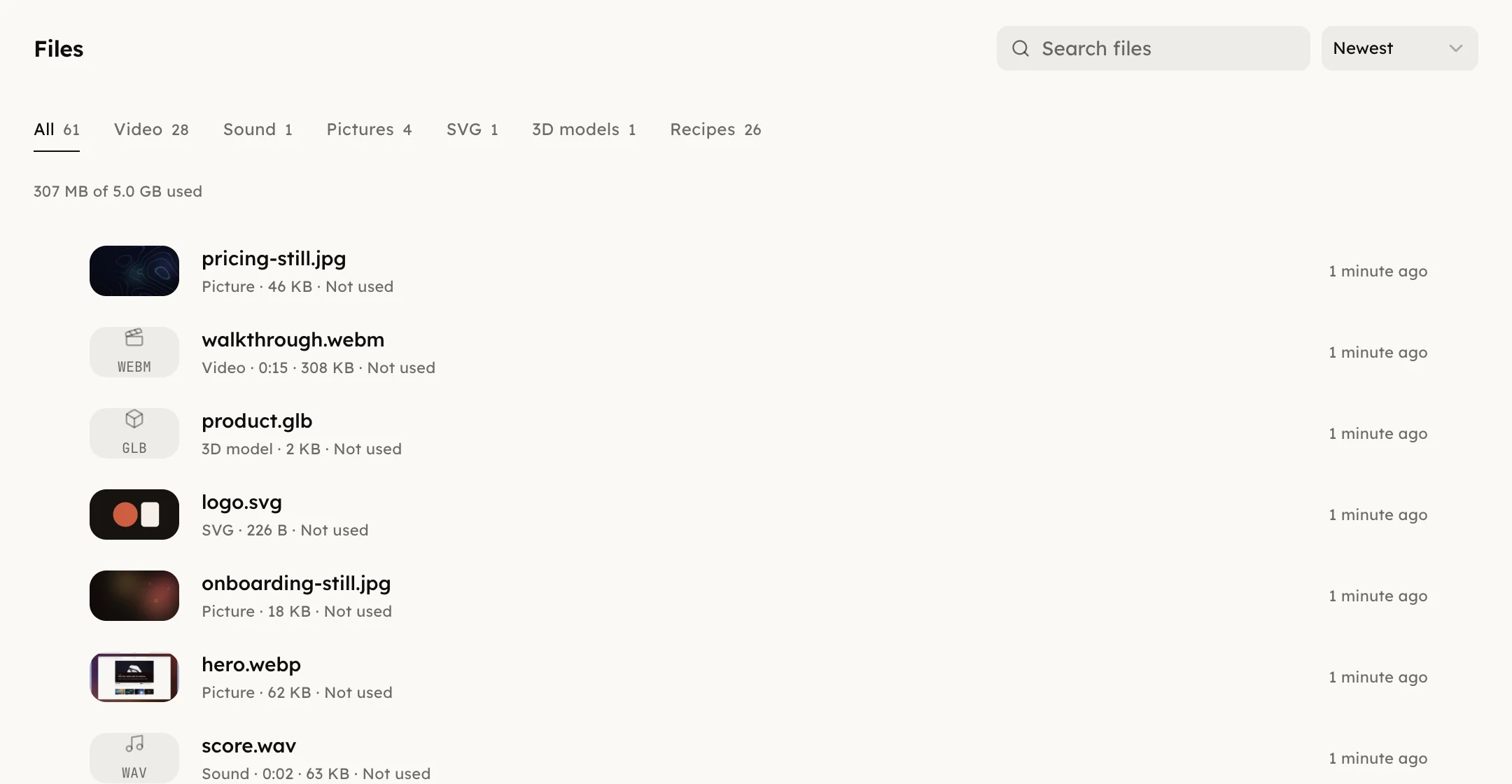
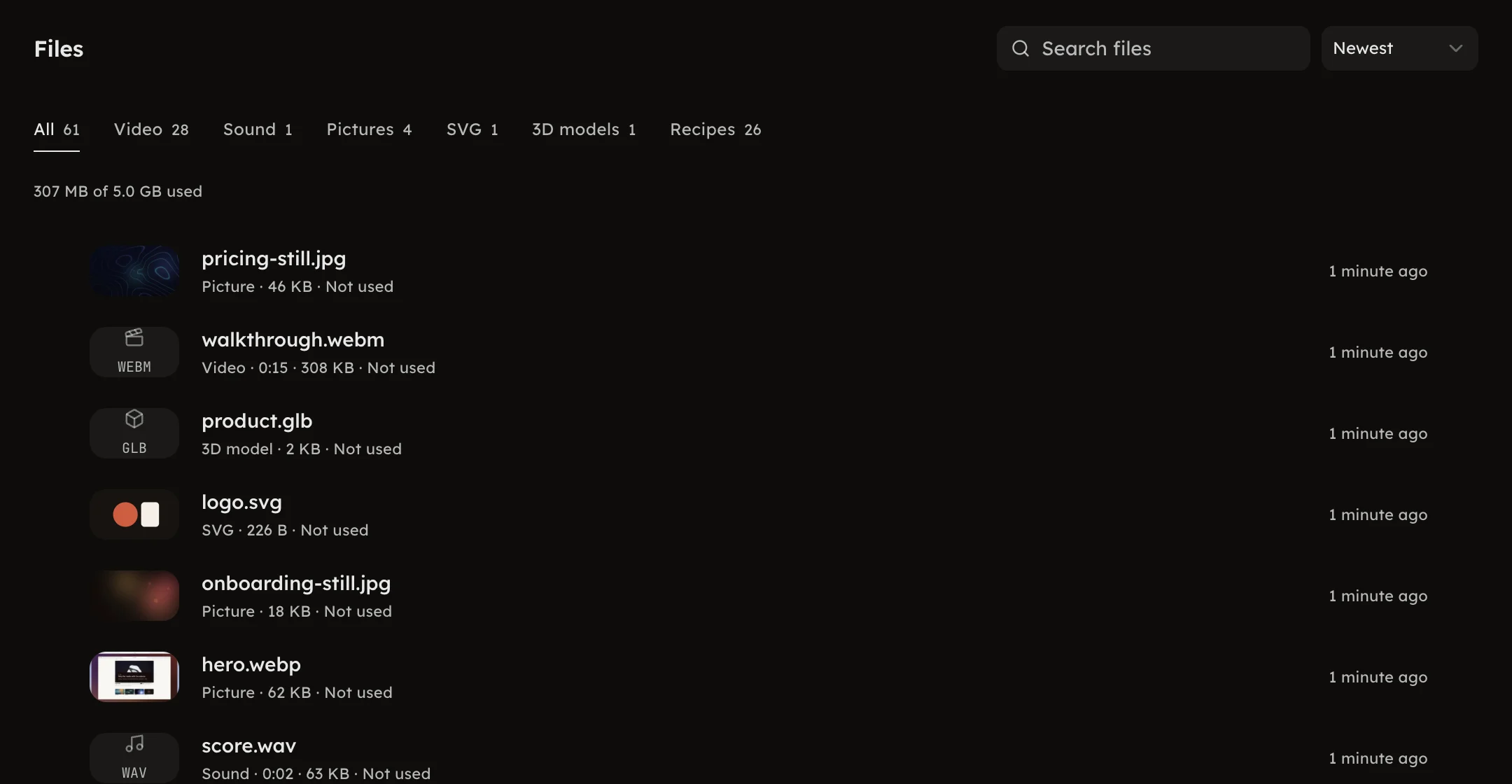
Each row says what the file is, how long it runs, how big it is, whether a program uses it and which project it is in. Press a row to open the file, where you rename, move or delete it.
- The kinds across the top filter the list, each with its count.
- Search files finds a file by name.
- The sort is Newest, Largest or Name. Largest shows what is taking your storage.
The line above the list is your storage: how much you hold, of how much, and the part that sits in Trash. Files in Trash still count until you empty it.
Select many
⌘-click toggles a row, ⇧-click extends, ⌘A takes the page and Esc
lets go. Move to project files the selection in one project. Delete
moves it to Trash, where it can be restored for 30 days. A program that uses
a deleted file keeps working.
A file that a recording or a program brought with it is listed here too. If nothing uses it and it is not in a project, it is removed after 7 days.