vossodocs
Open studio
  • Overview
  • With your agent
  • What is vosso
  • Make your first video
  • Keyboard shortcuts

Studio

    • Install the recorder
    • Record a tab
    • Record a window or the screen
    • Webcam and microphone
    • Tab and system audio
    • Take a screenshot
    • Record without the extension
    • Bring a video file
    • Record with the CLI
    • Zooms
    • Adjust a zoom
    • Add and delete zooms
    • Camera styles
    • Follow the cursor
    • Tilt
    • Cursor and clicks
    • Trim and split
    • Speed
    • Freeze
    • Range chips
    • Add footage and transitions
    • Text
    • Media
    • Reuse a fileNew
    • HTML layers
    • Live layers
    • Soundtrack
    • Voice and levels
    • Backdrop
    • Card and frame
    • Webcam
    • History
    • Save and autosave
    • Projects and recipes
    • FilesNew
    • Export a video
    • The program itself
    • Publish
    • The watch page
    • Embed a vos
    • Remix and duplicate
    • Every release

Agents and code

    • The agent contract
    • Install the skills
    • Bring a Remotion or HyperFrames video
    • Push and pull
    • Versions and conflicts
    • Folders and recipes
    • Credentials
  • Start

    • Install and log in
    • The take directory

    Reference

    • Verbs
    • actions.json
    • doc.json
    • HTML layers
  • Programs

    • Overview and auth
    • Config format
    • Voses and versions

    Catalogs

    • Fonts
    • Music and SFX
    • 3D typefaces
    • Backdrops
    • Limits
Back to vos.so

Edit › Cut

Speed

Speed a stretch up or slow it down with a band that prints what it costs.

previous← Trim and splitnextFreeze →

Press Speed in the timeline toolbar, or S, to add a speed change at the playhead. It lands as a band riding on the footage in the Video row, and the band prints its cost: the seconds it saves or adds, as −N.Ns or +N.Ns.
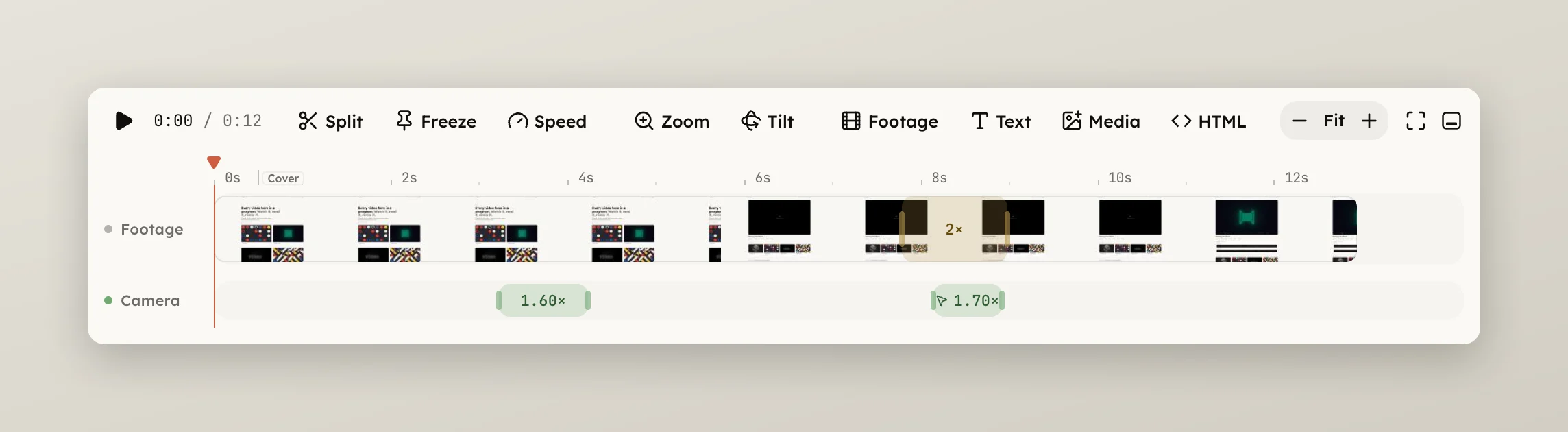
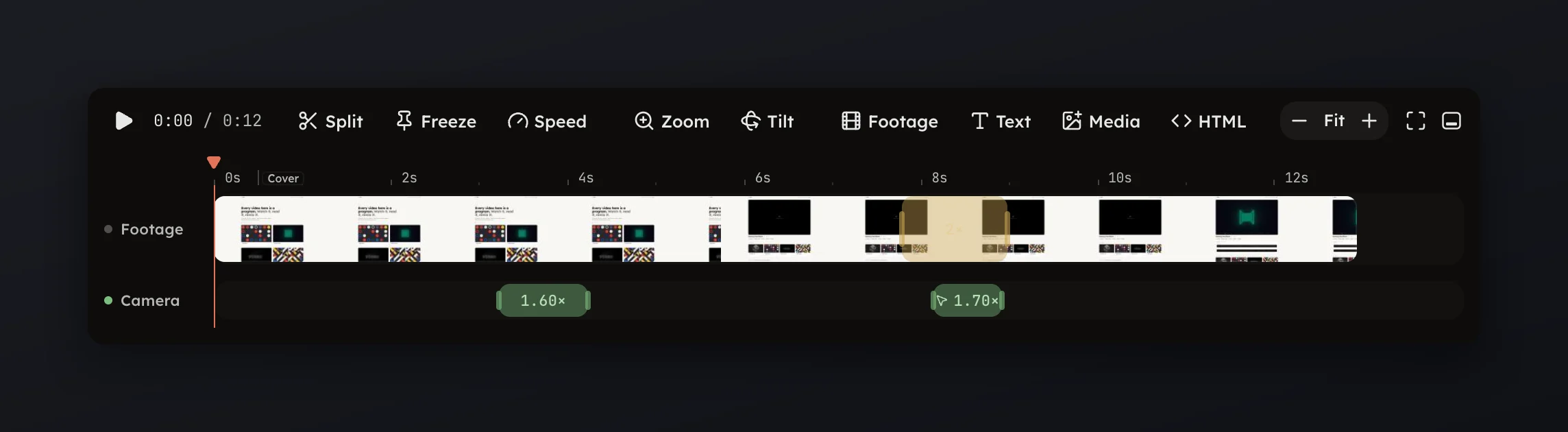
A 2× speed band riding on the footage with its cost printedA 2× speed band riding on the footage with its cost printed

Faster is quicker from a range: drag across the footage and press 2× or 4× in the chip row. Over a band the chips read 1×, 2×, 4× and Remove; see Range chips.

Select the band for its panel.

  • Rate is 0.1× to 16×, with presets at 0.5, 1, 1.5, 2, 3 and 5. 1× is normal speed.

The panel's note says how many seconds of footage play in how many seconds of output. Drag the band's body to move it, and the take's total length stays the same. Drag an edge to resize it, and the total changes.

Press Delete speed in the panel or ⌫ to remove the change. A freeze is not a speed change: it is its own band, see Freeze.