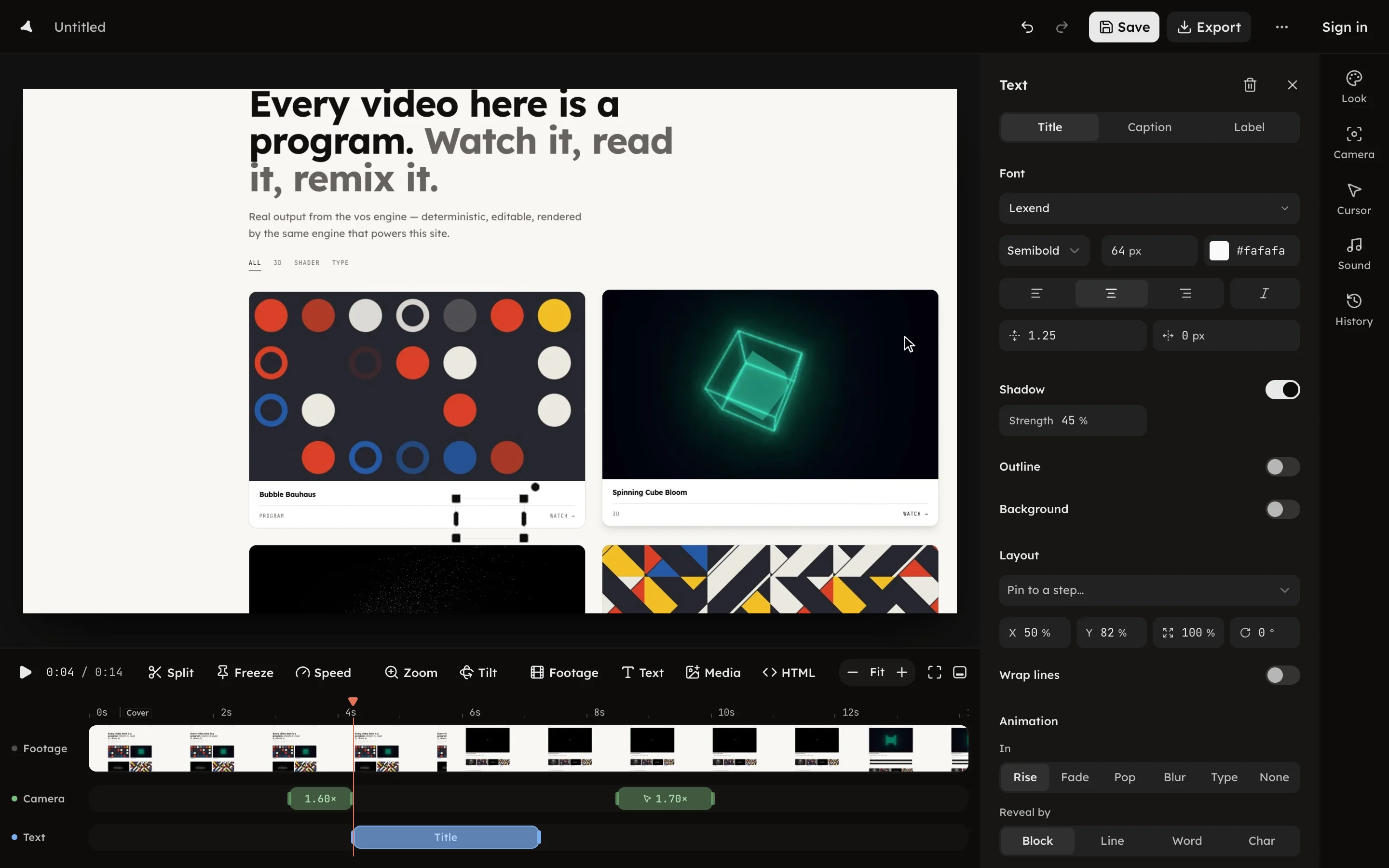
Text
Add a title, retype it on the canvas, and style, place and animate it.
Add a title, retype it on the canvas, and style, place and animate it.
Press Text in the timeline toolbar, or T, to add a title at the
playhead. From the toolbar it opens for typing in place, on the canvas.
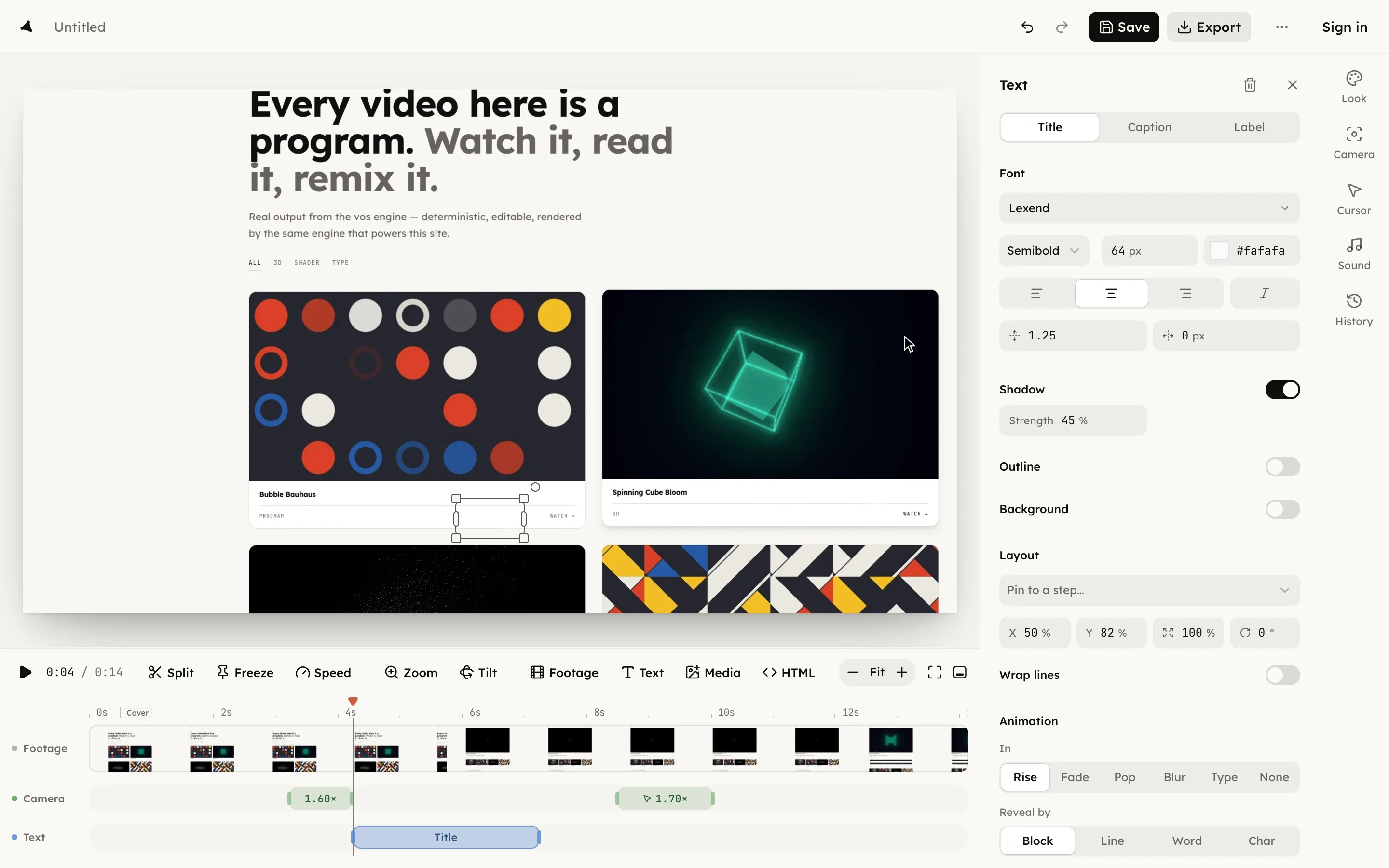
Words are typed on the canvas. Double-click a text layer or a program's
own text, or select it and press Enter, to retype it. Enter keeps the
words, Shift+Enter breaks a line, Escape puts the old words back.
The words on the canvas are the words you get. Select some to style just
those: the bar above the layer, or ⌘B, ⌘I, ⌘U and ⌘⇧X, set bold,
italic, underline and strikethrough; its two colours set the ink and a
highlight; ⌘\ clears them. A style can start and end mid-word, typing
inside a styled run keeps its style, and with text selected the panel's
weight, italic and colour act on the selection.
Selected text wears a box on the canvas: drag a corner to scale it, the grip above to rotate it, a side handle to set the wrap width.
The panel holds the style.
The layer is one clip on the Layers row; drag its edges to change when
it shows. Delete text or ⌫ removes it.