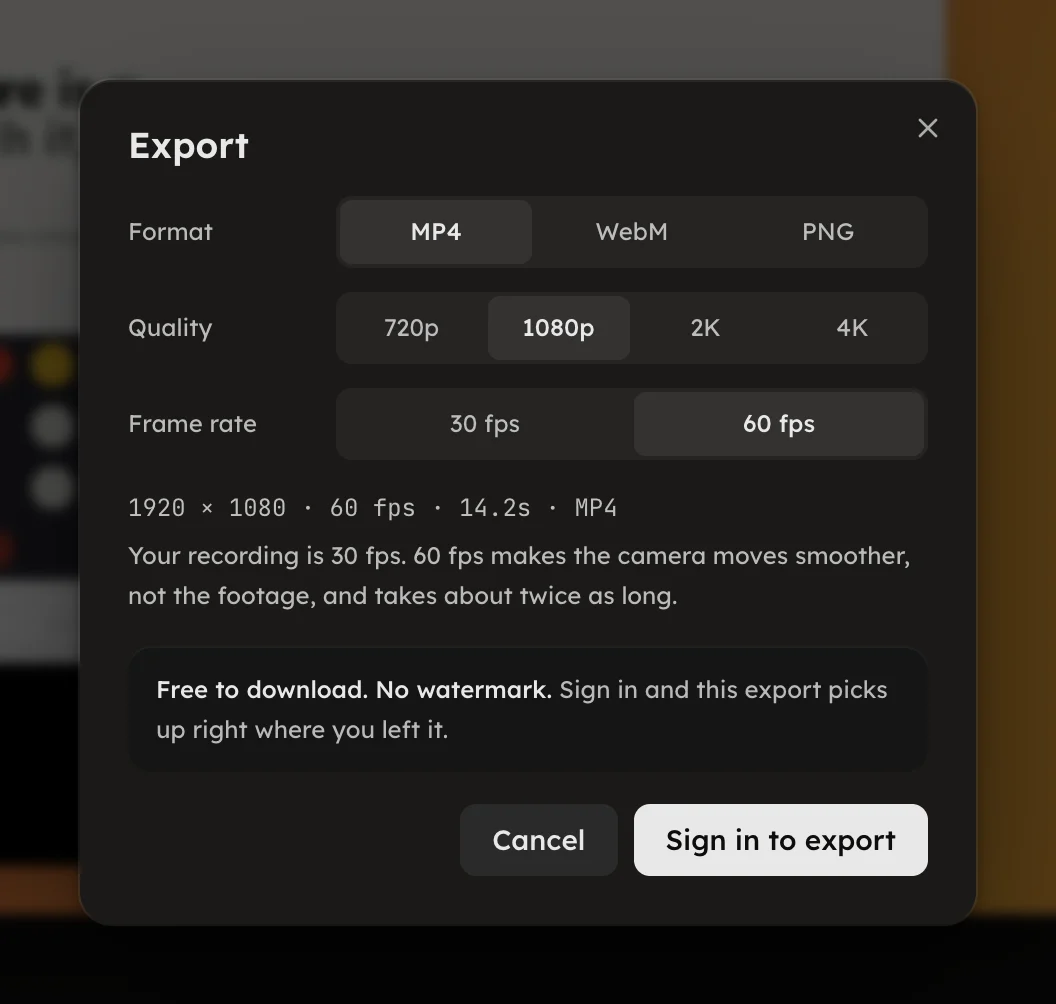
Export a video
Pick MP4 or WebM, a quality up to 4K and a frame rate, and read the facts line.
Pick MP4 or WebM, a quality up to 4K and a frame rate, and read the facts line.
Press Export in the topbar. The dialog asks only the questions your format has, then prints one line that says exactly what the button will produce.
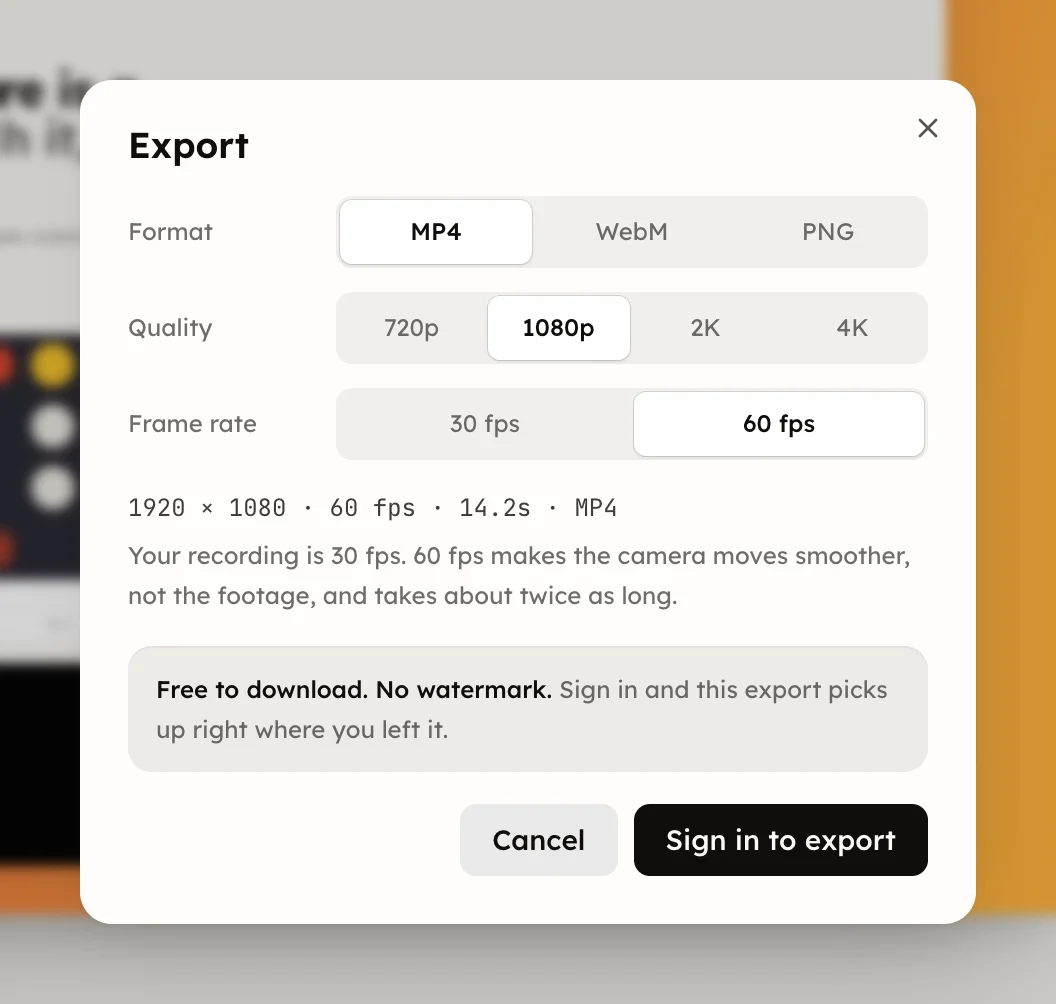
The facts line reads like 1920 × 1080 · 30 fps · 12.3s · MP4. Press
Export MP4; the button shows a percent while it encodes, and Cancel
export stops it. The file takes the document's name.
Signed out, the dialog reads Free to download. No watermark. and offers Sign in to export. Signing in happens in a popup, so the editor stays put and the export resumes. Recording and editing need no account; exporting needs a free one, and export stays free at every resolution up to 4K with no watermark. A take runs up to 30 minutes.
The program as a page is The program itself.