Adjust a zoom
Aim a zoom on the canvas, set its level and transition, and change when it runs.
Aim a zoom on the canvas, set its level and transition, and change when it runs.
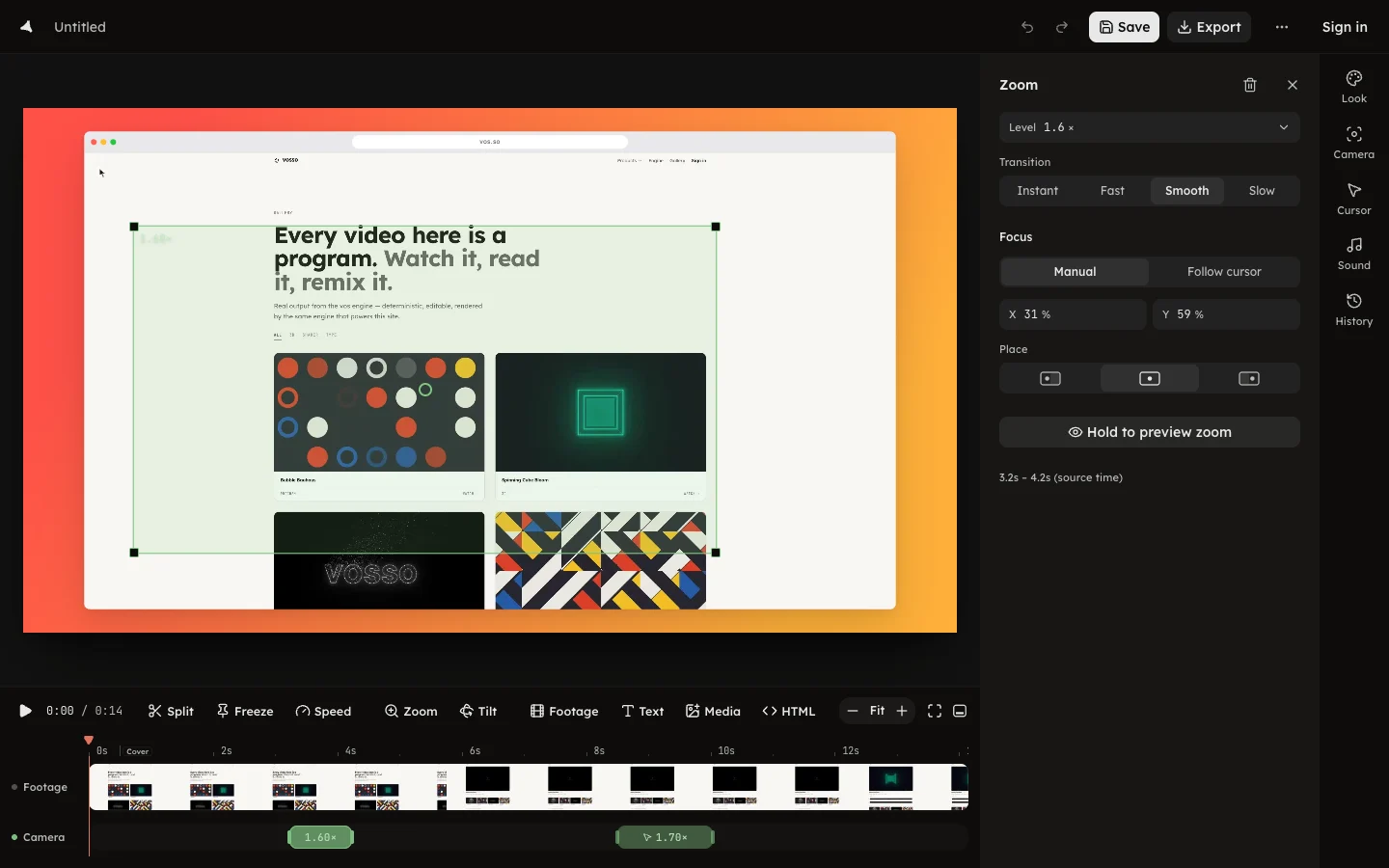
Select a zoom on the Camera row and, with the take paused, a green rectangle appears on the canvas. Drag it to aim the zoom; drag a corner to change how far it pushes in.
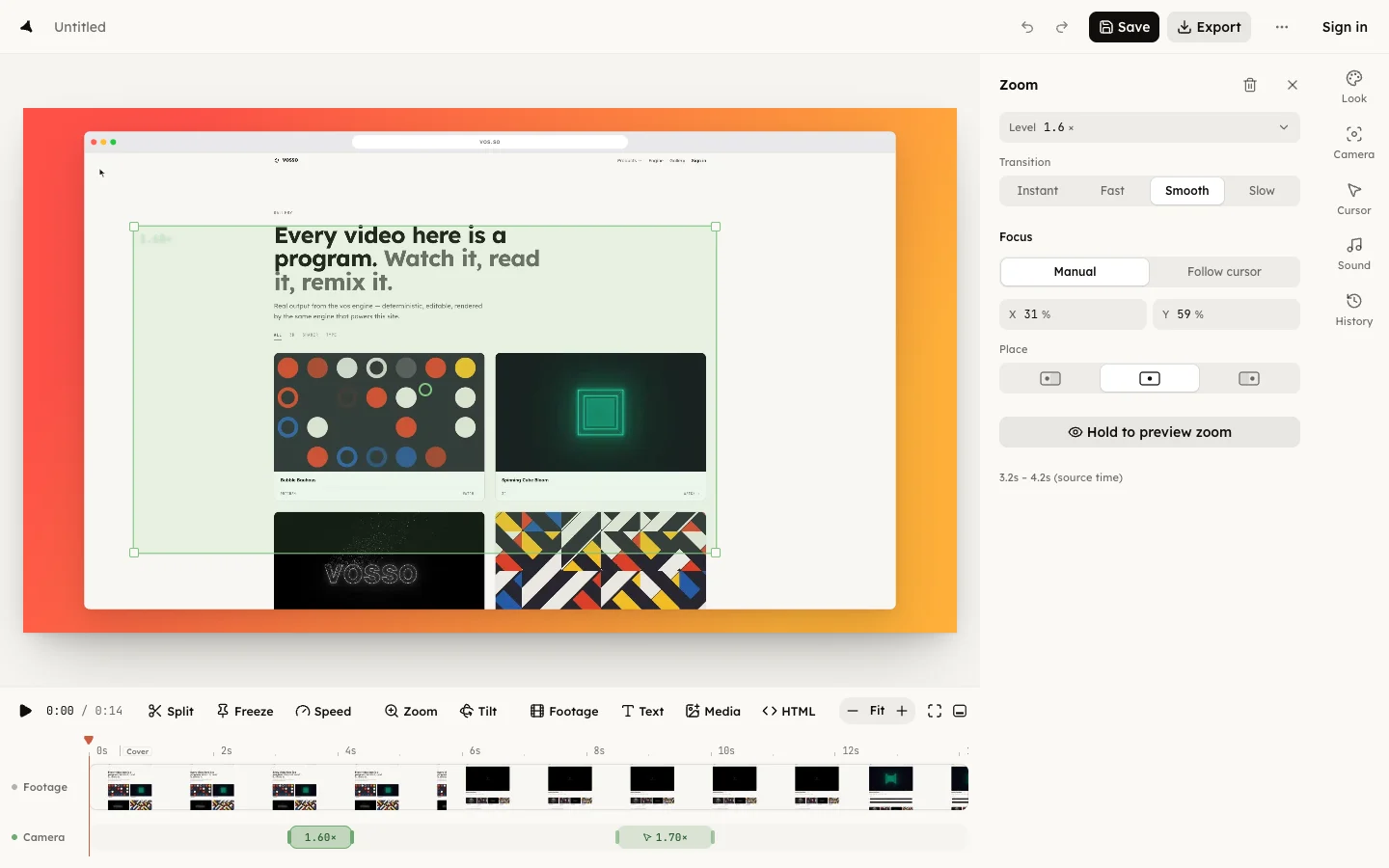
The panel holds the same things as numbers.
Drag the zoom's edges on the row to change when it starts and ends. ← and
→ nudge the selected zoom by 0.05 s, or 0.5 s with ⇧ held. The panel's
last line prints its in and out points in source time, the seconds of the
recording itself.
Every edit makes the zoom yours, so a re-plan from the Camera page keeps
it. To take it out, press Delete zoom in the panel or ⌫.