vossodocs
Open studio
  • Overview
  • With your agent
  • What is vosso
  • Make your first video
  • Keyboard shortcuts

Studio

    • Install the recorder
    • Record a tab
    • Record a window or the screen
    • Webcam and microphone
    • Tab and system audio
    • Take a screenshot
    • Record without the extension
    • Bring a video file
    • Record with the CLI
    • Zooms
    • Adjust a zoom
    • Add and delete zooms
    • Camera styles
    • Follow the cursor
    • Tilt
    • Cursor and clicks
    • Trim and split
    • Speed
    • Freeze
    • Range chips
    • Add footage and transitions
    • Text
    • Media
    • Reuse a fileNew
    • HTML layers
    • Live layers
    • Soundtrack
    • Voice and levels
    • Backdrop
    • Card and frame
    • Webcam
    • History
    • Save and autosave
    • Projects and recipes
    • FilesNew
    • Export a video
    • The program itself
    • Publish
    • The watch page
    • Embed a vos
    • Remix and duplicate
    • Every release

Agents and code

    • The agent contract
    • Install the skills
    • Bring a Remotion or HyperFrames video
    • Push and pull
    • Versions and conflicts
    • Folders and recipes
    • Credentials
  • Start

    • Install and log in
    • The take directory

    Reference

    • Verbs
    • actions.json
    • doc.json
    • HTML layers
  • Programs

    • Overview and auth
    • Config format
    • Voses and versions

    Catalogs

    • Fonts
    • Music and SFX
    • 3D typefaces
    • Backdrops
    • Limits
Back to vos.so

Edit › Layers

Soundtrack

Score the cut with CC0 music, your own tracks or effects, and set each clip.

previous← Live layersnextVoice and levels →

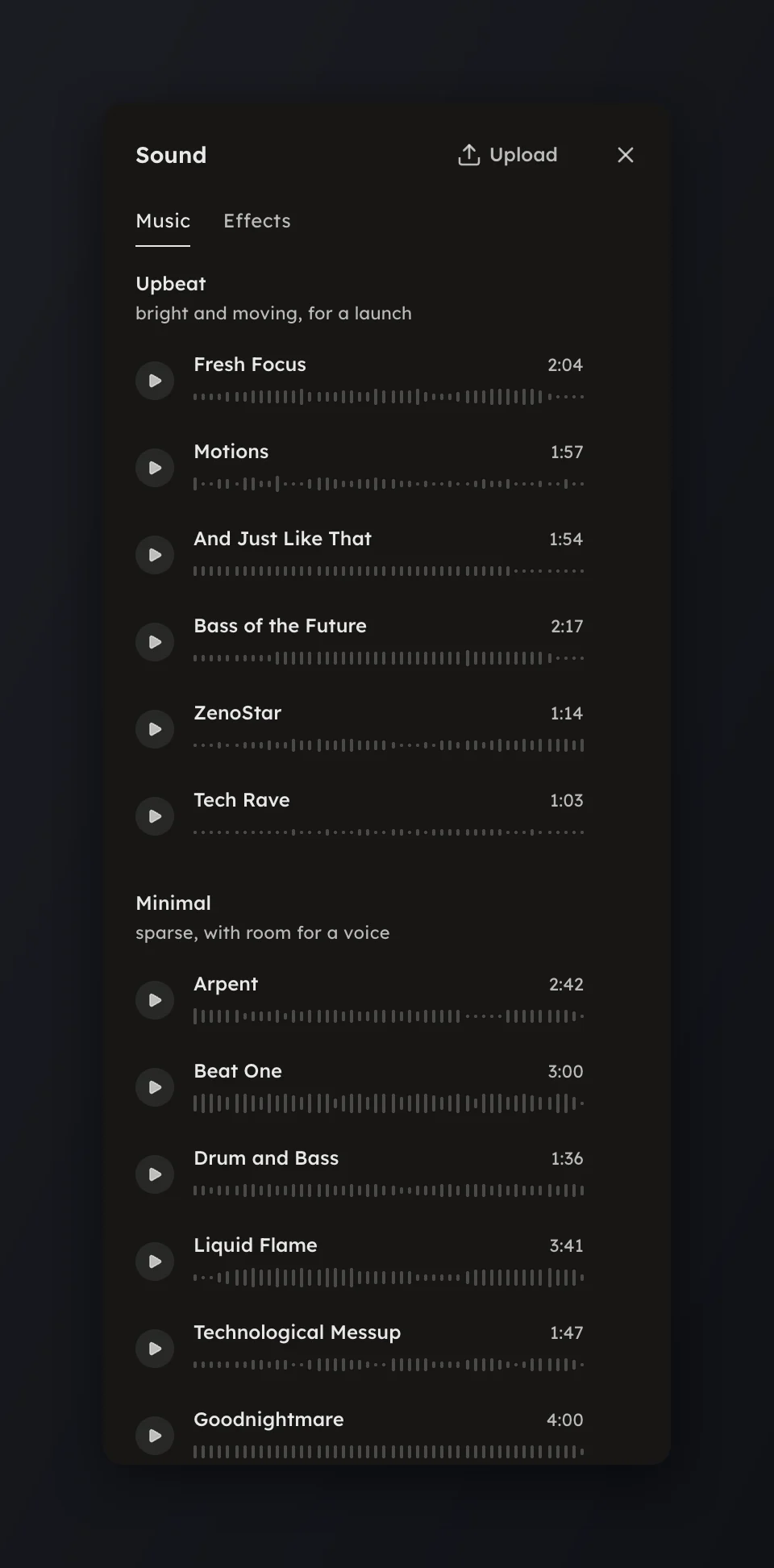
Open Soundtrack in the rail to add music, your own audio or a sound effect. Press a row to hear it; the + that appears adds it to the Sound row.
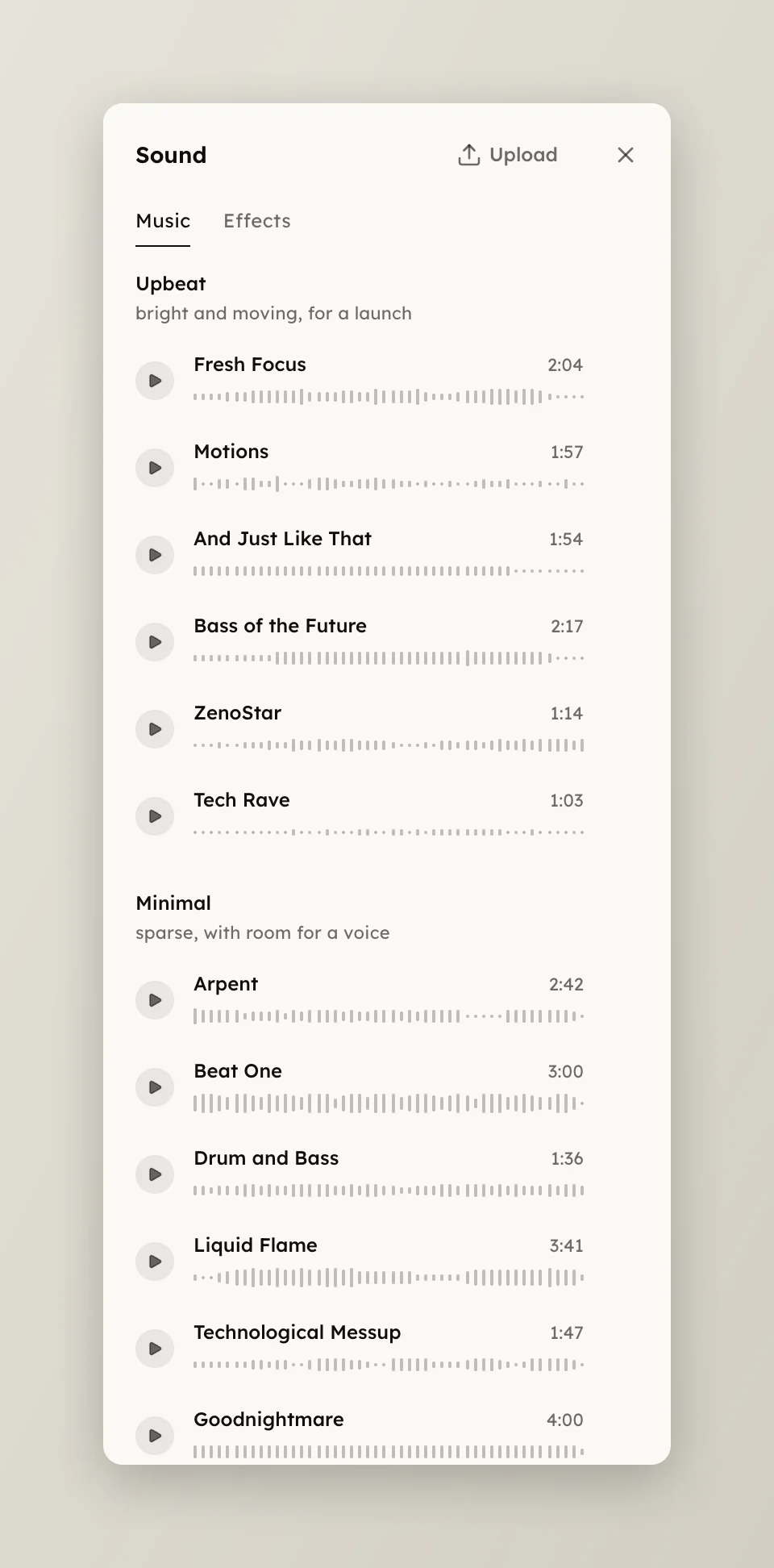
The Soundtrack page listing music tracksThe Soundtrack page listing music tracks
  • Music lists curated CC0 tracks, free to use. For this cut at the top names the three that fit this take (its length, its beats, your voice) with a line saying why; the chips narrow the rest by vocals, loops and pace, and every row shows its tempo. A track you add loops to fill the take and ducks under your voice; a suggested one starts where its swell lands on the cut's payoff.
  • Uploads holds your own tracks, reusable across takes; they score the cut the same way music does. Upload in the page header takes audio files, and the tab shows once you are signed in.
  • Effects are short sounds; + drops one at the playhead.

Select a clip on the Sound row for its Audio clip panel.

  • Volume is 0 to 100 %.
  • Fade in and Fade out are 0 to 3 s each.
  • Loop to fill repeats the clip to the end of the take.
  • Duck under voice turns the clip down while your narration plays. It shows only when the take has a voice track; see Voice and levels.

Right-click a clip for Duplicate. Remove clip in the panel or ⌫ takes it off.